Logging your expenses after the first month
Your plan is set — now track what actually happened and see where the money went.
Step 1: Open the Expenses page
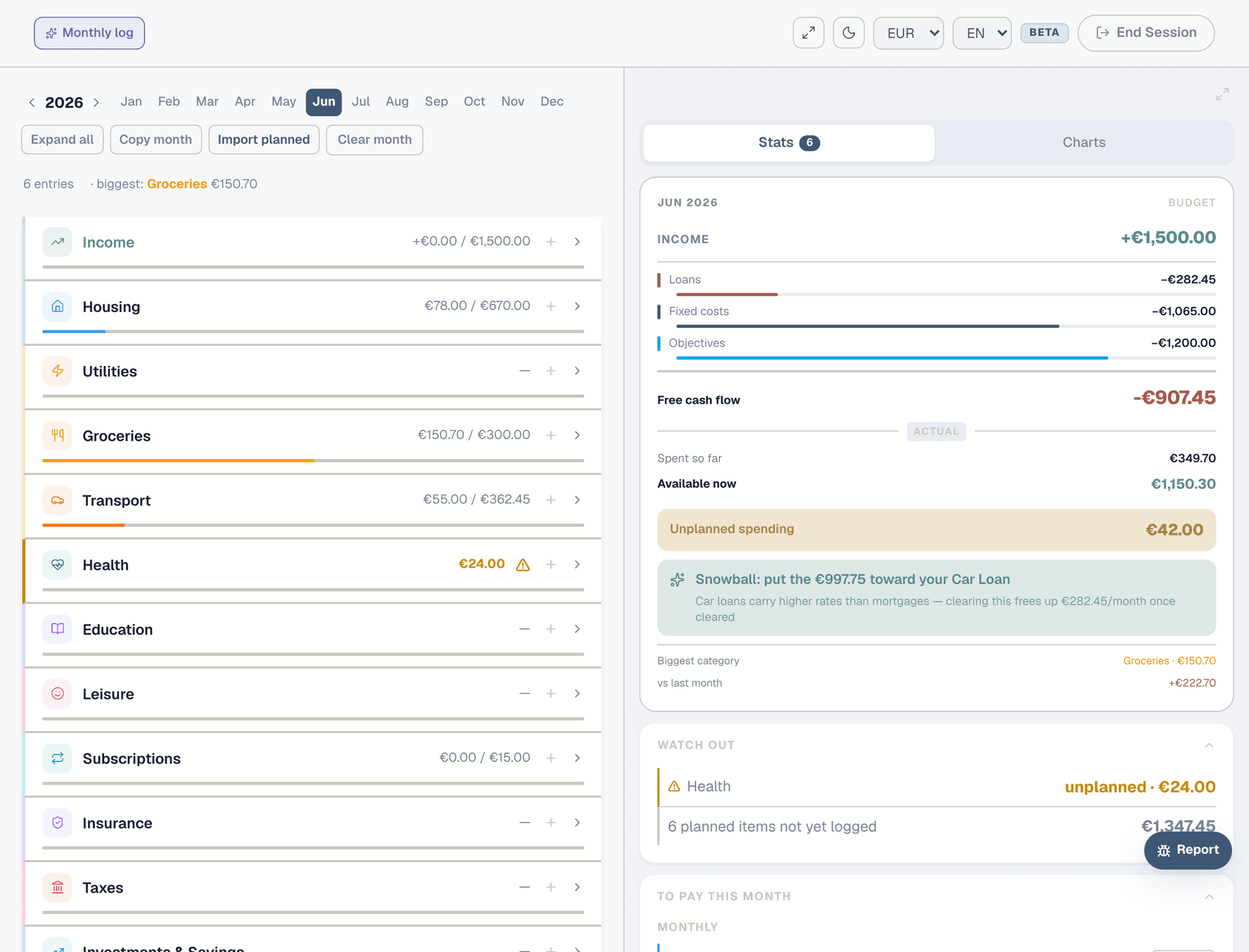
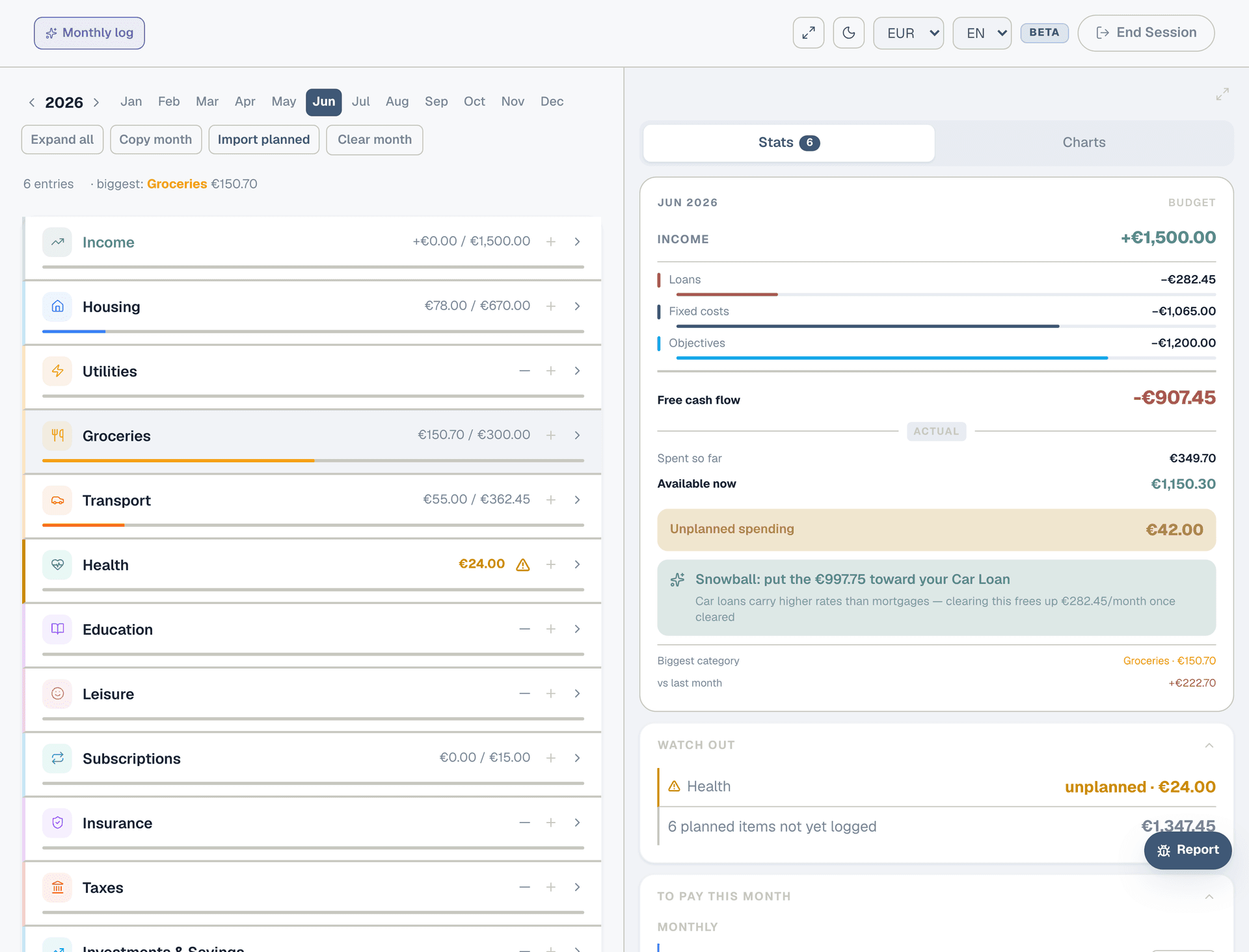
Navigate to Expenses from the sidebar. You'll see the current month selected at the top, with your income row and 12 expense categories below it. Each category is a bucket — what you log here gets compared against what you planned.
Step 2: Confirm your income
At the top of the page, you'll see an income section. If your salary matches what you planned, click the "Log" button next to it — this confirms your income arrived as expected. If the amount was different (a bonus, overtime, or a short month), log it manually with the actual number.
Step 3: Import your planned costs
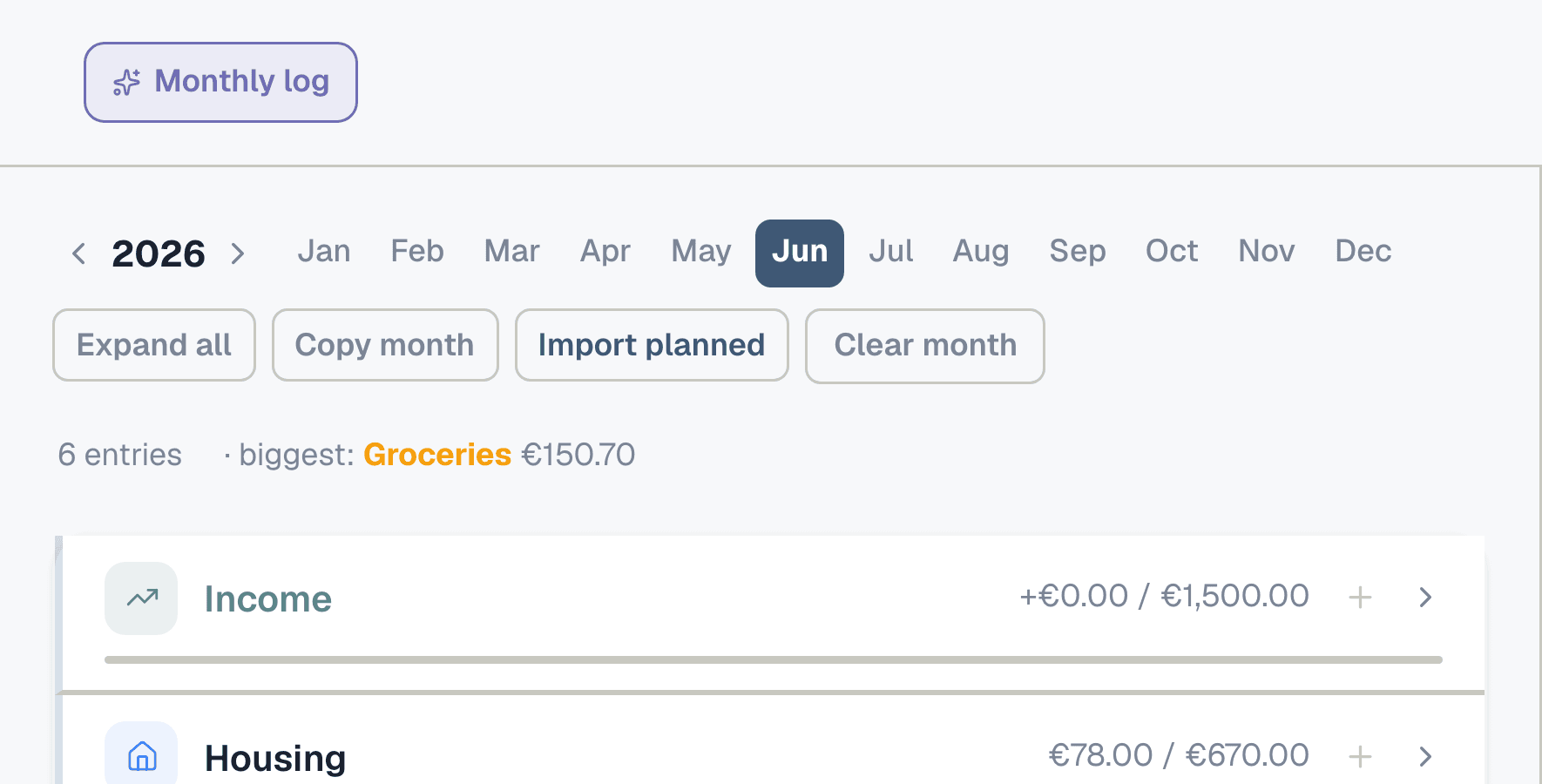
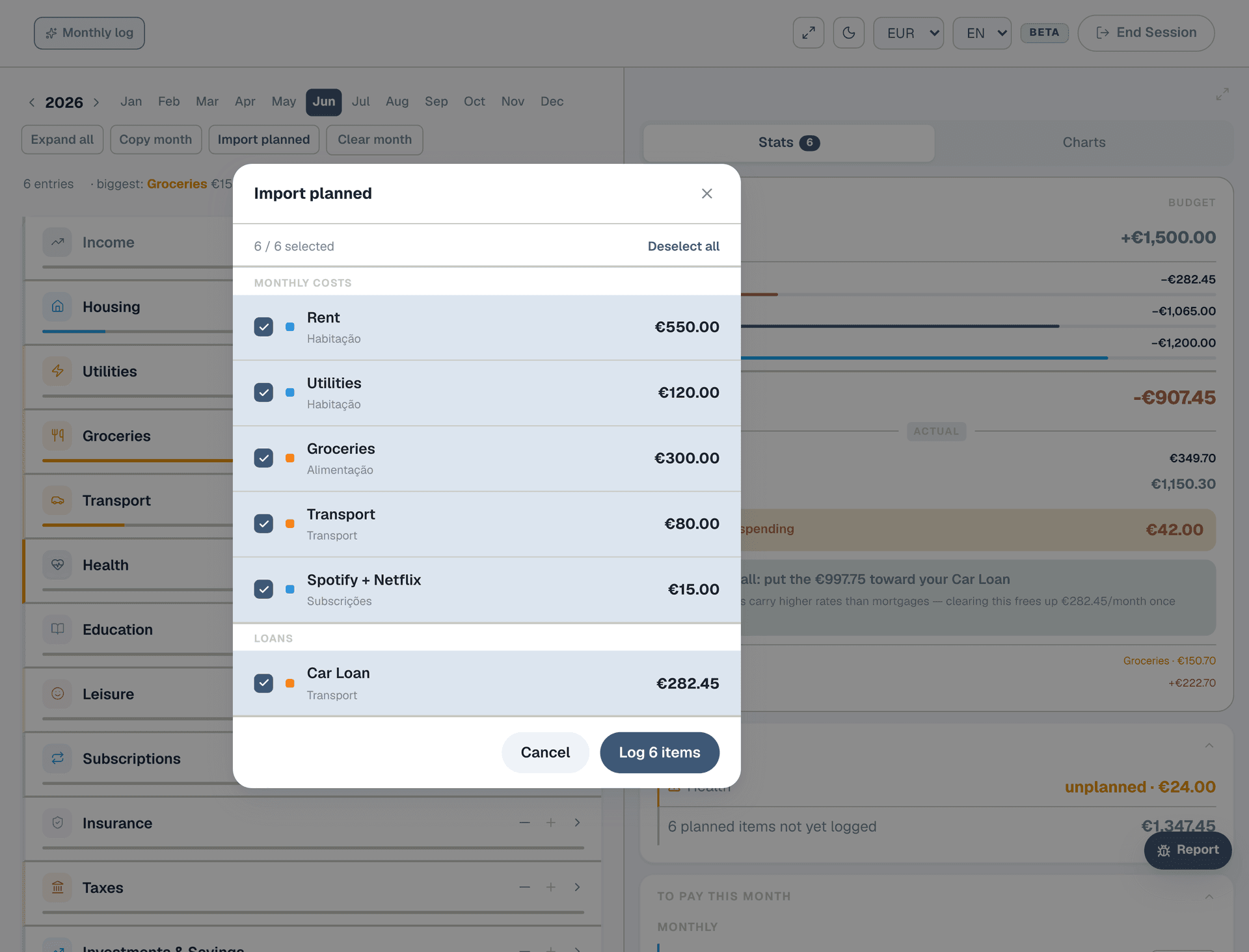
Click "Import planned" in the header. A checklist appears with every cost from your Planner: rent, utilities, subscriptions, loan payments. All are pre-selected. Hit confirm and they're logged as actual expenses in one click. This is the fastest way to log fixed costs that don't change month to month — rent is always rent.
Step 4: Log variable spending
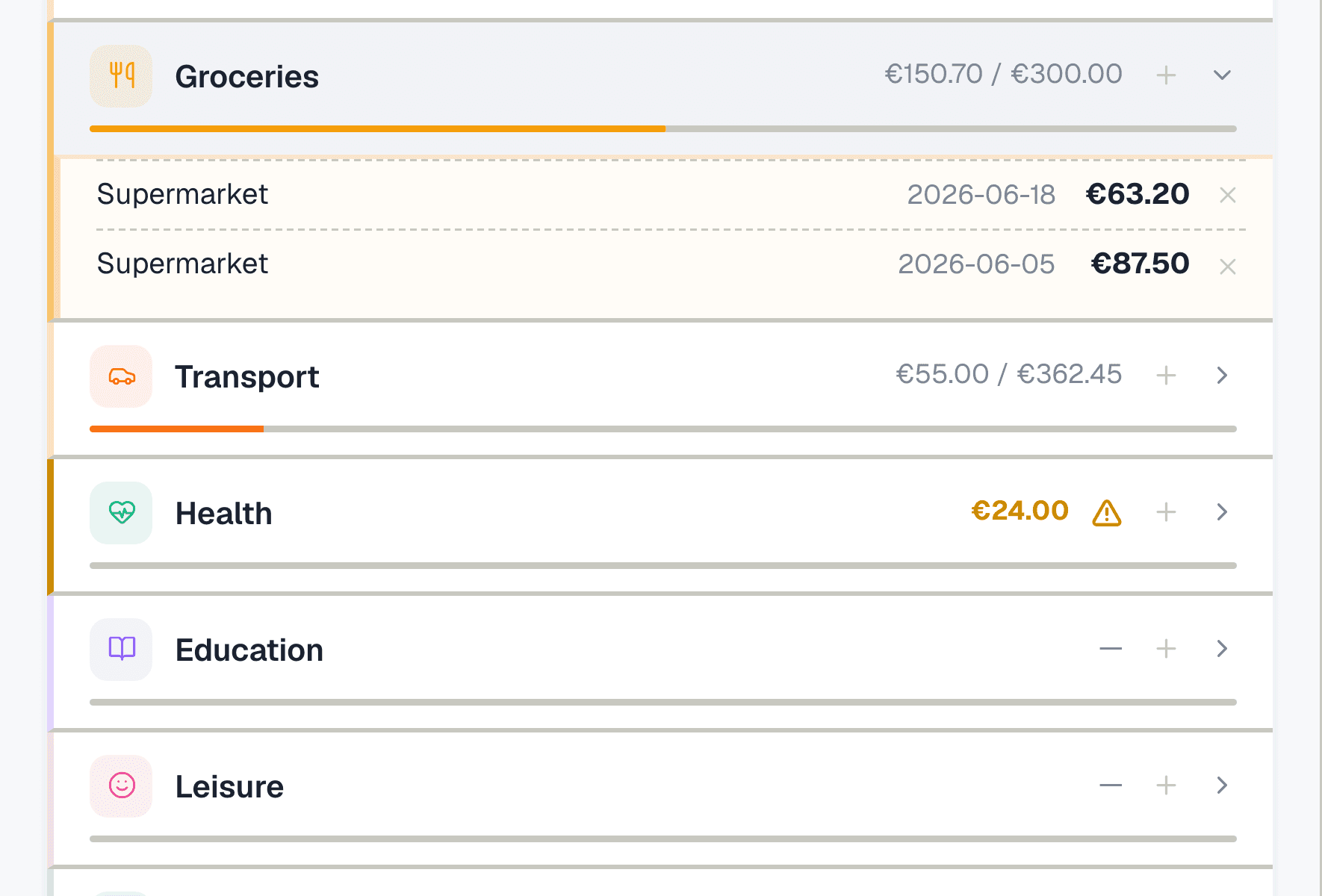
For categories where spending varies — groceries, transport, eating out — tap the "+" on the category and log each expense individually. Enter the amount, a short description (e.g. "Supermarket", "Fuel"), and the date. Be honest — this only works if the numbers are real.
Step 5: Check plan vs real
The right panel shows your budget breakdown: each category with a progress bar showing how much you spent vs what you planned. Green means under budget, red means over. This is where you spot the gaps — maybe groceries are fine but eating out is double what you expected.
Step 6: See the full picture on the Dashboard
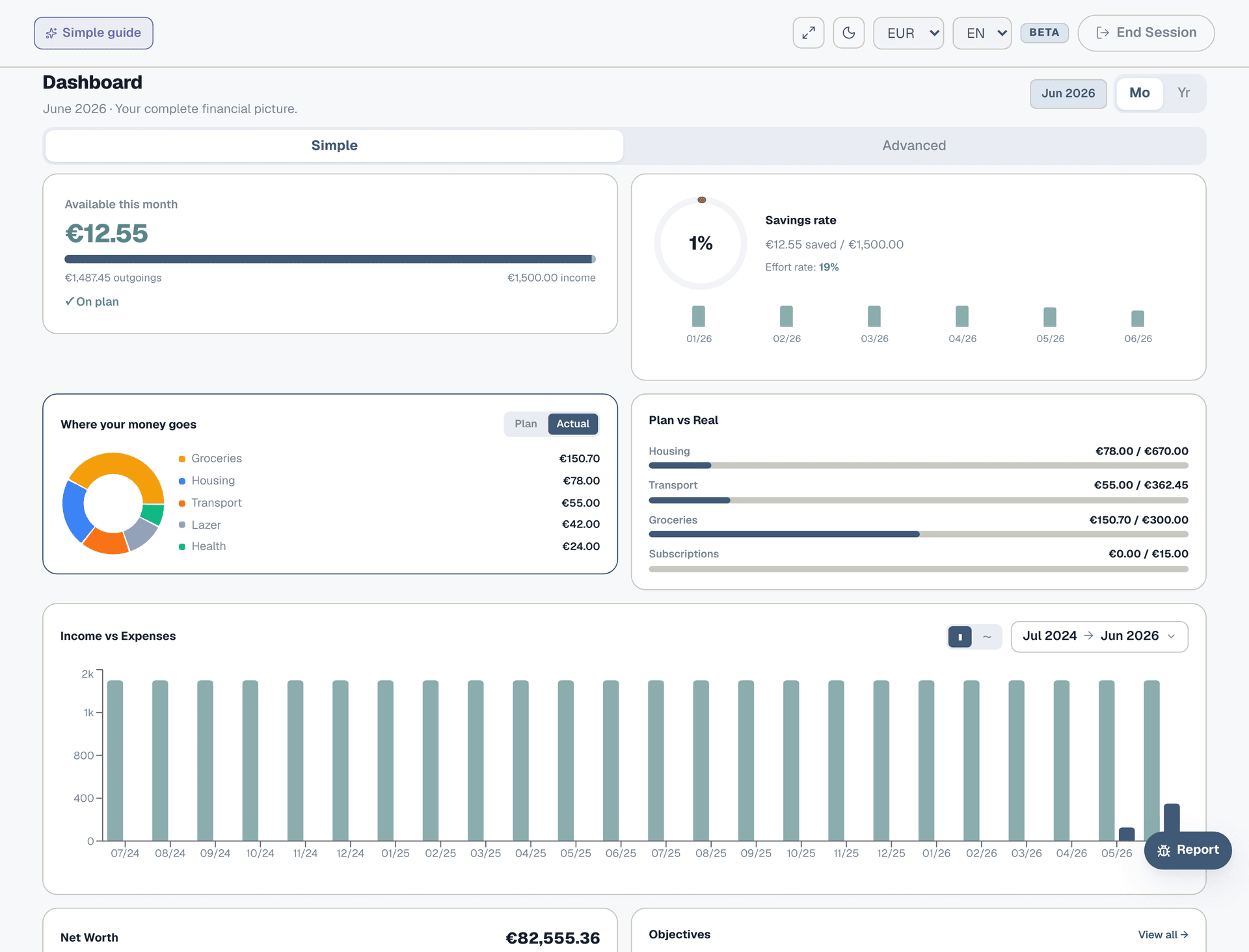
Go to the Dashboard. The "Available this month" card now shows your real available cash based on actual spending, not just the plan. The "Where your money goes" donut shows your actual spending distribution. Toggle between Plan and Actual to compare.
Step 7: Copy to next month
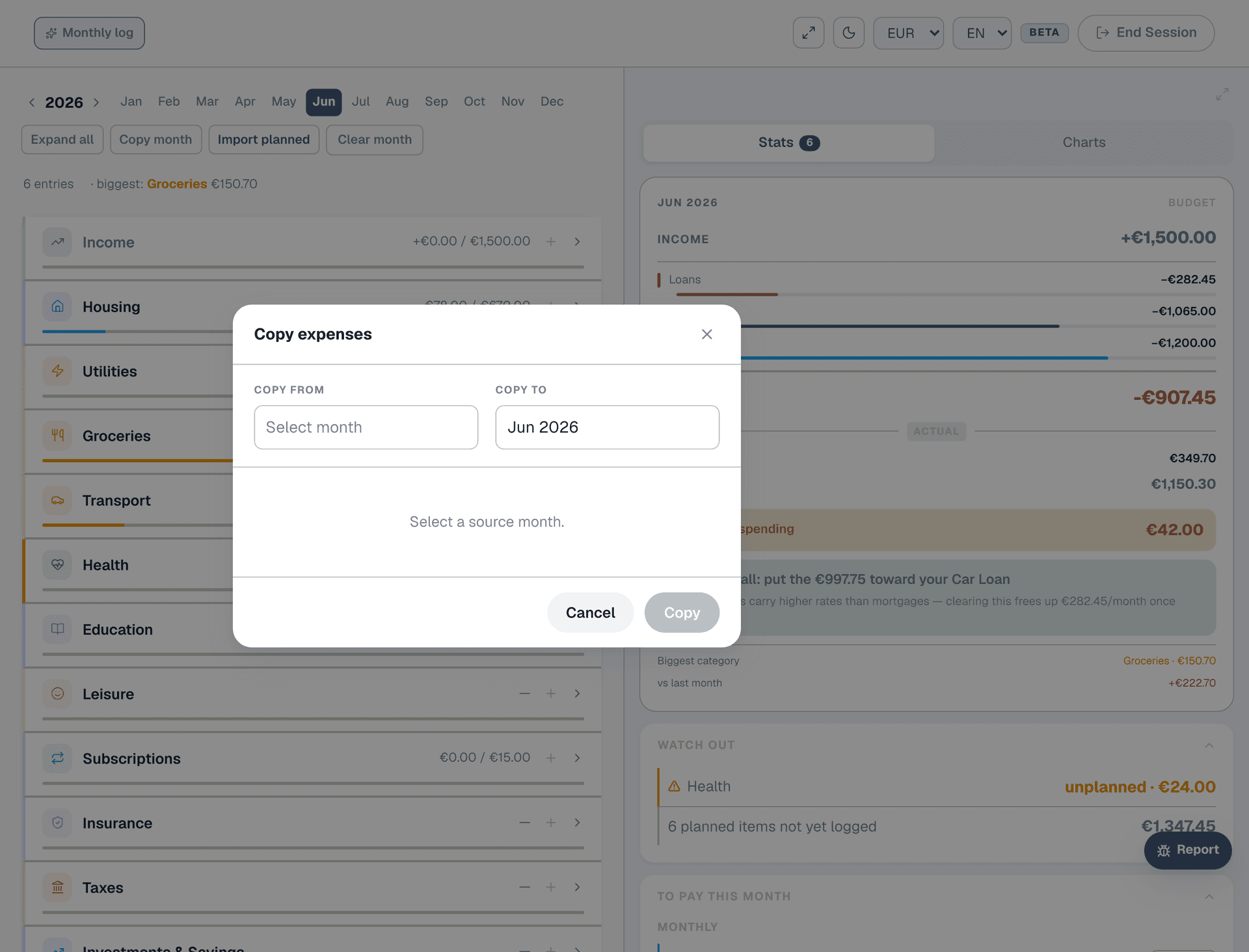
At the start of a new month, click "Copy month" on the Expenses page. This carries forward last month's entries as a starting point — useful for fixed costs that repeat. Edit the amounts that changed and add new entries. You don't have to start from zero every month.